


Setting up a dynamic IP address for JusProgDNS
For the profile settings on www.jusprogdns.com and to track usage quotas, JusProgDNS needs to link the devices you use to your login account. This is done via your personal IP address, which you use to browse the internet. You can think of it as a personal postcode.
Unfortunately, major DSL providers such as Deutsche Telekom or Vodafone regularly change the IP addresses of their residential customers, as there are actually too few IP addresses (IPv4) worldwide to accommodate the large number of internet users and devices. Companies and organisations usually have static IP addresses, but these are not permanently assigned to residential customers.
JusProgDNS therefore offers its own DynDNS service (DynDNS = dynamic DNS, i.e. dynamic IP addresses), which allows you to automatically update the IP addresses stored in your user account with JusProgDNS.
Note: The service is not suitable as a general DynDNS service for other applications, but is intended exclusively for JusProgDNS.
DynDNS services are typically used when, for example, you want to log in remotely to your home via the internet to control heating thermostats, view webcams or listen to a digital answering machine. JusProgDNS cannot use existing services, as they provide fixed web addresses rather than IP addresses. That is why we provide you with our own DynDNS service free of charge.
Setting up DynDNS for JusProgDNS
To set up the DynDNS service for JusProgDNS, you must first register at www.jusprogdns.com and then log in using your username and the password you have chosen. You will find the login field in the top right-hand corner of this page, amongst other places.
Once you’re logged in, click on the ‘DynDNS Info’ menu item in the left-hand navigation bar

You will then see your personal login details for the JusProgDNS DynDNS service. These details are usually entered into the administration interface of your DSL router, e.g. the FRITZ!Box. Almost all DSL routers have a function that transmits updated IP addresses to DynDNS services.
Here is an example of the entry screen from the FRITZ!Box; the screens on other DSL routers look very similar.
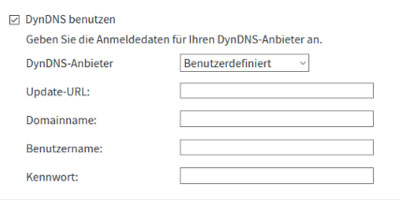
Enter the following:
- Under ‘DynDNS provider’, select ‘Custom’, as JusProgDNS is not preset
- Under ‘Update URL’, enter the URL displayed under the ‘DynDNS Info’ menu item. Copy the URL exactly as it appears there; do not alter the information in the angle brackets.
- Under “Domain name”, enter one of the “domains” that we display in your jusprogdns account. If you enter your general user account name, the IP address will apply to all your child accounts. However, you can also create an entry specifically for a child; in this case, the format is childname.accountname
- Under “Username”, enter your account username. Please ensure the spelling and case are correct.
- Under “Password”, enter the DynDNS password that we have provided (not your login password for jusprogdns.com).
Save the settings in your DSL box.
Tip: It may take a little while for the DSL box to automatically update your IP address at www.jusprogdns.com. However, this usually happens within a maximum of 24 hours. Until then, your settings may not yet be correctly assigned in your account.
Tip: If you use DoT or DoH and make use of our ‘Custom URLs’ (DoH) or ‘Custom Subdomains’ (DoT), you do not need to register any IP addresses or use DynDNS. With DoH and DoT, the account assignment is transmitted via the custom URL or subdomain respectively. You can find more information here.